Your First n8n Workflow: Automate Something in an Hour
A browser-only n8n Cloud walkthrough: build a five-node workflow that pulls NASA solar-flare data and posts a weekly report, step by step.
You do something by hand on a schedule. Check a data source, decide whether it matters, drop a note somewhere. You opened n8n, and now there's an empty canvas, a hundred buttons, and no obvious first move. Here is the shortest route through it, transcribed from n8n's own "Build your first workflow" quickstart, and staying entirely in the browser.
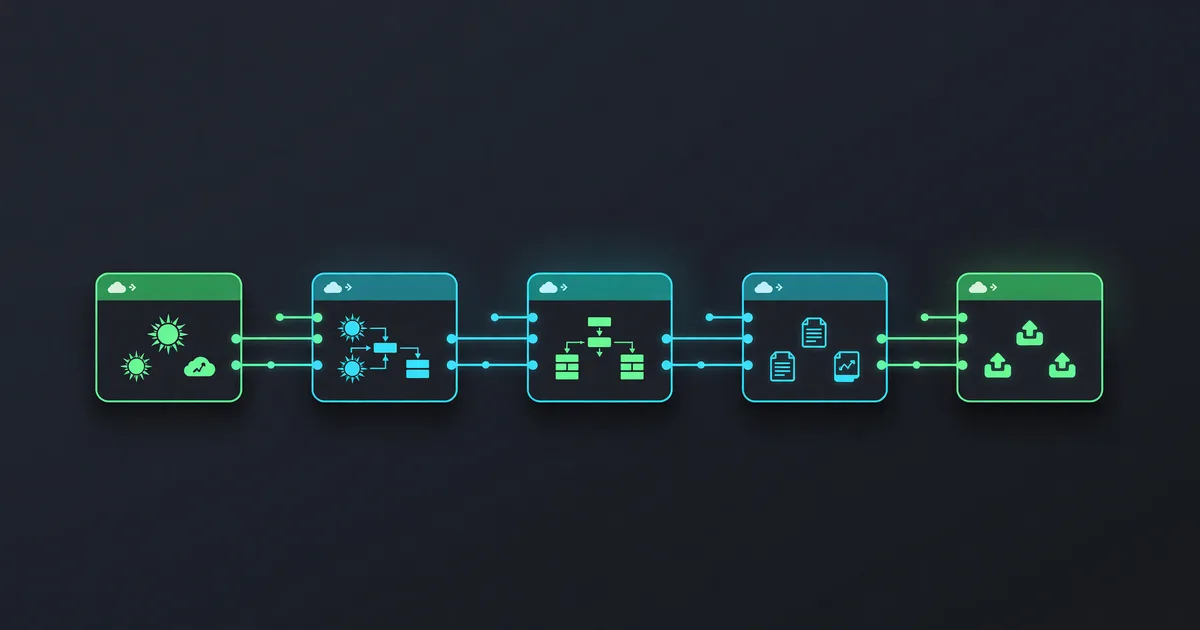
What you'll end up with is five nodes. On a weekly schedule it pulls recent solar-flare data from NASA's DONKI API, splits the results on the flare's classification, and posts a one-line report to a throwaway web page. It's a toy, on purpose. The point is to touch every part of the editor once (a trigger, an app node with credentials, a branch, an expression, an output) so the next workflow you build for real work isn't the first time you've seen any of it.
One honest note before you start. An hour is a target, not a measurement. Most of the steps take seconds. The one wait nobody controls is the NASA API key, which arrives by email whenever it arrives. n8n's interface and plan limits also change over time. The labels below match n8n's current quickstart documentation, so if a button isn't where this post puts it, check the source at docs.n8n.io/build-your-first-workflow before assuming anything is broken.
Set up the account and the one key that trips people up
The quickstart uses n8n Cloud, which the docs call the option "recommended for new users." No Docker, no self-hosting, no terminal. Register at app.n8n.cloud/register. A new trial gives you 14 days of Pro plan features, capped at 1000 executions and running on the same computing power as the Starter plan. n8n warns that exact features, usage limits, and prices for each plan can change, and points to n8n.io/pricing for current numbers, so treat the plan details as a snapshot. If the trial expires without an upgrade, n8n deletes the workspace. You have 90 days after the trial ends to download your workflows.
Now the step that snags beginners, which is why it comes before the NASA node and not after it. You need a free NASA API key. Go to api.nasa.gov and fill out the form behind the "Generate API Key" link. NASA generates the key and emails it to the address you entered. If it doesn't show up, check junk and spam. Nothing downstream works until you have this key in hand, so kick it off first and let it land while you build.
Five nodes, in the order n8n wants them
1. Create the workflow
When you open n8n you'll see one of two things. A welcome window with two large buttons, where you choose "Start from Scratch." Or the "Workflows" list on the "Overview" page, where you select "Create Workflow." Either lands you on a blank canvas, which the docs define as the main interface for building workflows in n8n's editor UI.
2. Add the Schedule Trigger
n8n starts a workflow in two ways: manually with "Execute Workflow," or automatically with a trigger node sitting first. You want automatic. Select "Add first step," search for "Schedule," and select "Schedule Trigger" to drop it on the canvas. n8n opens the node. Set "Trigger Interval" to "Weeks," set "Weeks Between Triggers" to 1, then set "Trigger on Weekdays" to Monday, "Trigger at Hour" to 9am, and "Trigger at Minute" to 0. Close the node details view to return to the canvas.
One thing to know about timing: the Schedule Trigger uses the workflow timezone if you've set one, otherwise the instance timezone. n8n Cloud tries to detect the instance owner's timezone at signup and falls back to GMT. That fallback is the reason a schedule sometimes fires at an hour you didn't expect, and it comes back in the failure section below.
3. Add the NASA node and its credential
Select the "Add node" connector on the Schedule Trigger node, search for "NASA," and select "NASA" to see its list of operations. Search for and select "Get a DONKI solar flare." n8n adds the node and opens it.
Now wire in the key. Select the "Credential for NASA API" dropdown, choose "Create new credential," paste the emailed key into "API Key," select "Save," and close the credentials screen. The new credential should be selected automatically in "Credential for NASA API." (Credentials, in n8n's own words, store authentication information to connect with specific apps and services, so you set this up once and reuse it.)
By default the DONKI Solar Flare operation returns the past 30 days. To narrow it to a week, go to "Additional Fields," select "Add field," and select "Start date." Next to "Start date," select the "Expression" tab, then the expand button to open the full expressions editor, and enter exactly this:
{{ $today.minus(7, 'days') }}
Expressions let you populate node parameters dynamically by running JavaScript, and this one generates a date in the correct format seven days before the current date. Close the "Edit Expression" modal. Then select "Execute step" to run just this one node. n8n calls the NASA API and shows solar flares from the past seven days in the "OUTPUT" section. Running this node now matters more than it looks. Close the NASA node.
4. Add the If node to split on classification
Solar flares have five possible classifications, and the If node sends higher ones down one branch and lower ones down the other. Select the "Add node" connector on the NASA node, search for "If," and select "If." n8n opens it.
Drag "classType" into "Value 1." If you skipped "Execute step" on the NASA node a moment ago, there's no data here to drag, which is exactly why you ran it. Change the comparison operation to "String > Contains," and in "Value 2" enter X, the highest classification. Select "Execute step." n8n tests the data against the condition and shows which results match true or false in the "OUTPUT" panel. If it's a quiet week with no X-class flares, try replacing X in "Value 2" with A, B, C, or M. Close the node.
5. Send both branches to Postbin
Postbin (toptal.com/developers/postbin) receives data and displays it on a temporary web page, which makes it a clean stand-in for "post this somewhere" without setting up a real destination.
On the If node, select the "Add node" connector labeled "true." Search for "PostBin," select it, then select "Send a request." n8n adds and opens the node. Now go to Postbin, select "Create Bin," and leave that tab open. Copy the bin ID (it looks similar to 1651063625300-2016451240051) and paste it into "Bin ID" in n8n.
Next to "Bin Content," mouse over the field so the "Expression" tab appears, select it, then select the expand button to open the full expressions editor. Drag "classType" from the If node output into the editor, where it becomes the reference {{$json["classType"]}}. Add a message around it so the full expression reads exactly:
There was a solar flare of class {{$json["classType"]}}
Close the expressions editor, then close the Postbin node. For the false branch, hover over the Postbin node, select "Node context menu," then "Duplicate node," and drag the "false" connector from the If node to the left side of the new Postbin node. Now both outcomes report.
6. Test, then publish
Select "Execute Workflow." n8n runs the whole thing, showing each stage in progress. Go back to your Postbin bin and refresh the page to see the output. To make it run once a week on its own, you have to publish it by clicking "Publish." The Schedule Trigger docs repeat this for a reason: if a workflow uses the Schedule node as a trigger, make sure you save and publish it. A workflow that only ever runs when you press "Execute Workflow" is not automated.
Where it breaks, and what you'll see
Six things account for almost every failure in this build. The cause behind each one is stated somewhere in n8n's own documentation, usually as a warning you skimmed past. Knowing the symptom saves you from staring at the wrong node.
- The NASA node won't return your data. The docs are explicit that you need credentials to reach the NASA APIs at all, so if the key hasn't arrived by email yet or was never pasted into "API Key," this node has nothing to give the rest of the workflow. Fix the credential first, or wait on the email, before touching anything downstream.
- There's no "classType" to drag into "Value 1." This happens when you skipped "Execute step" on the NASA node. The If node has no sample data to offer. Go back, run the NASA node, then return.
- The true branch produces nothing. A quiet week with no X-class flares leaves the high branch empty even though everything is wired correctly. Swap X in "Value 2" for A, B, C, or M and re-run.
- The bin expired while you were building. Postbin bins exist for only 30 minutes after creation, and the docs say outright that past that limit you may need to create a new bin and update the ID in the Postbin nodes. Note the plural: duplicating the first node copies its "Bin ID" into the second, so a fresh bin means editing both.
- It never fires on schedule. The workflow was never published. Executing it manually does not arm the trigger. Click "Publish."
- It fires at the wrong local time. That's the timezone setting. n8n Cloud guesses your timezone at signup and falls back to GMT if it can't, so a 9am Monday trigger may land at a 9am you didn't mean. Check the workflow timezone against the Schedule Trigger's documented behavior.
None of these are mysterious once you've named them. The pattern worth internalizing: when a node downstream looks broken, the cause is usually the node upstream that didn't run or didn't return data.
When a workflow builder is the wrong answer
This exercise makes n8n look like the answer to everything, and it isn't. A workflow, in n8n's own definition, is a collection of nodes that automate a process. The load-bearing word is process: the same steps, in the same order, on a trigger you can describe. That's the shape n8n rewards.
If the thing you want to handle happens once, doing it by hand is faster than building anything. If it happens often but never the same way, where the judgment changes every time and no fixed sequence of steps captures it, a visual builder just moves the mess onto a canvas. And if you're trying to decide between platforms rather than build something, this post won't settle it. It's a build walkthrough, not a comparison. If you're weighing options, look at the directory entries for n8n and Zapier and judge them against your actual task, not a NASA demo.
When you do want to go further, n8n's own next steps are worth more than a third-party tutorial: building an AI chat agent (docs.n8n.io/build/integrate-ai), the n8n Academy courses at learn.n8n.io, ready-made templates at n8n.io/workflows, and the glossary at docs.n8n.io/key-concept-glossary for any term that didn't land.
So here's the test before you open the canvas at all. If your task runs once, or runs differently every time, skip the whole procedure and just do it. A workflow earns its setup cost only when the same steps repeat on a trigger you can name. If your task fails that test, none of the five nodes above will help you.
Keep reading

How to Write With AI Without Sounding Like a Robot
Learn how to write with AI without sounding robotic. Master prompt engineering, the write-then-edit approach, voice preservation techniques, and tools like…
Hermes Agent Tutorial: Self-Improving AI Setup
Install and configure Hermes Agent so it remembers your workflows, builds reusable skills, and gets better at your tasks over time.

How to Clone Your Voice in ElevenLabs: A Beginner Guide
What ElevenLabs' docs actually say about instant voice cloning: the plan you need, the audio spec, the five settings, and the limits.