Run Laguna XS.2 Offline With Ollama: Setup Guide
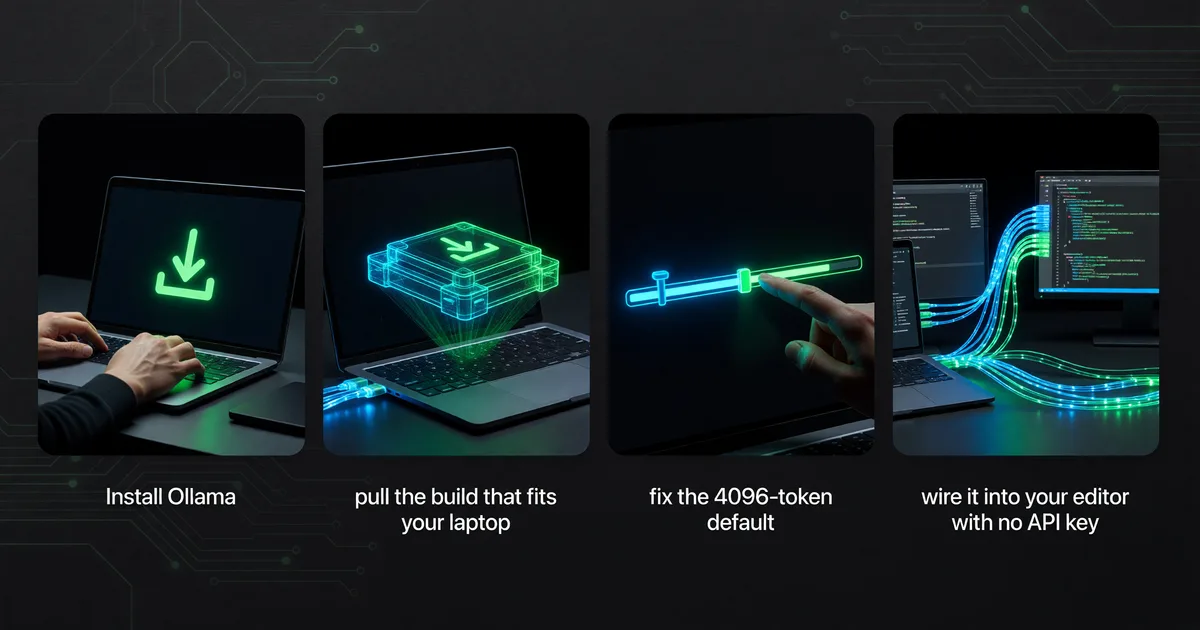
Install Ollama, pull the Laguna XS.2 build that fits your laptop, fix the 4096-token default, and wire it into your editor with no API key.
You have a decent laptop, a coding model you'd like to try on real work, and zero appetite for setting up an API key or watching a per-token bill tick up while you poke at it. Laguna XS.2 from Poolside runs entirely on your own machine once it's pulled, offline, under an Apache 2.0 licence. The path below gets it running with a handful of commands.
Install, pull one tag, then fix the context window
Six steps, in order. The only one people skip is the last real setting, and skipping it quietly cripples the model.
- Install Ollama. On macOS and Linux the install command is identical:
curl -fsSL https://ollama.com/install.sh | sh
macOS also offers a direct Ollama.dmg download, and the download page lists a requirement of macOS 14 Sonoma or later. On Windows, use the Windows tab at ollama.com/download and follow the installer there. The Windows-specific steps aren't covered here, so don't assume the curl line works on it. - Pick a tag by its download size. Laguna XS.2 ships in several quantisations, and the size on disk is the most honest hardware signal you get. The model card lists these:
Two of those names are worth a footnote, because the docs say something about them and nothing about the rest. Of
Tag Download Advertised context Notes laguna-xs.2:latest 23GB 128K tags page lists digest ba9ecde43b0e, the same one it shows for q4_K_M laguna-xs.2:q4_K_M 23GB 128K what a bare pull gives you laguna-xs.2:nvfp4 19GB 256K smallest download laguna-xs.2:mxfp8 39GB 256K laguna-xs.2:q8_0 37GB 128K laguna-xs.2:bf16 67GB 128K joint largest download laguna-xs.2:mlx-bf16 67GB 256K MLX build nvfp4, Poolside writes: "We're also providing an NVFP4 version of Laguna XS.2, so you can expect strong performance on NVIDIA Blackwell architecture." Poolside's Hugging Face card separately lists MLX support, which is the only published hint at whatmlx-bf16is for. Neither page explains the other quantisation names, so go by download size.There is exactly one published memory figure anywhere in the docs: the card says the model is "compact enough to run on a Mac with 36 GB of RAM." That refers to the 33B-total, 3B-activated design in general. Ollama does not publish a minimum RAM per tag. So treat the download column as your proxy: a 23GB tag needs to sit in memory alongside your OS and editor, a 67GB tag needs a lot more, and there is no official table telling you the exact floor.
- Pull and run it. The bare run command grabs the default and drops you into a chat. On the tags page,
latestandq4_K_Mare both listed under digestba9ecde43b0e, at the same 23GB and 128K, so that is the build a bare pull gives you:ollama run laguna-xs.2
Want a specific quantisation instead? Pull it by tag first, for exampleollama pull laguna-xs.2:nvfp4, thenollama run laguna-xs.2:nvfp4. The first run downloads the weights; later runs start from disk. Type/byeto leave the chat. - Raise the context window. This is the step that matters. Ollama's FAQ states the default is "a context window size of 4096 tokens", and nothing exempts a 128K model from it. To lift it, either start the server with the environment variable:
OLLAMA_CONTEXT_LENGTH=8192 ollama serve
or set it inside a running chat with:/set parameter num_ctx 4096
(swap in whatever size you want), or passnum_ctxin an API request. For agentic coding you'll want far more than 8K. Ollama's own Claude Code guidance recommends a 64k+ context for local models, so size it up accordingly and watch your memory. - Check where it's actually running. After the model loads, run
ollama ps. It reports placement: "100% GPU" means the model is entirely on the GPU, "100% CPU" means it's entirely in system memory, and something like "48%/52% CPU/GPU" means it's split. Full GPU is what you want. A split or full-CPU placement is your cue that the tag you chose is too big for your hardware. - Wire it into an editor. Two documented routes:
- VS Code: install the Ollama extension from the Marketplace (it needs Visual Studio Code 1.120 or newer), open VS Code Chat, click the model picker at the bottom of the chat input, and choose Laguna XS.2 from the Ollama section. The extension connects to
http://127.0.0.1:11434by default. - Claude Code: launch it against Ollama with
ollama launch claude. A non-interactive example from the docs looks likeollama launch claude --model gemma4:cloud --yes -- -p "how does this repository work?"; substitutelaguna-xs.2and your own prompt. The docs advise picking a model with a 64k+ context for local use, which loops back to step 4.
- VS Code: install the Ollama extension from the Marketplace (it needs Visual Studio Code 1.120 or newer), open VS Code Chat, click the model picker at the bottom of the chat input, and choose Laguna XS.2 from the Ollama section. The extension connects to
If you'd rather talk to it programmatically, the local API base is http://localhost:11434/api. The documented call pattern is:
curl http://localhost:11434/api/generate -d '{"model": "laguna-xs.2", "prompt": "Why is the sky blue?"}'
Where it breaks, and what each failure looks like
The model forgets your files. You paste in a few source files, ask a question about the first one, and it acts like that file was never there. This is the 4096-token default doing exactly what it's set to do. The 128K on the tag card is the model's capacity, not the window Ollama gives it by default. Fix it with num_ctx or OLLAMA_CONTEXT_LENGTH as in step 4, then confirm the model still fits in memory after the bump, because a bigger context costs more RAM.
It runs, but painfully slowly. Run ollama ps. If it shows "100% CPU" or a CPU/GPU split, the weights didn't all fit on your GPU and part of the work is happening in slower system memory. There's no per-tag minimum to consult, so the move is to drop to a smaller download: try nvfp4 at 19GB, or accept a lower-precision build. The 36GB-Mac figure is the one anchor you have for what "comfortable" looks like.
The advertised context doesn't add up. Three published numbers disagree. The Ollama tag table lists 256K for nvfp4, mxfp8 and mlx-bf16 and 128K for the rest. The model overview lower down that same Ollama page states "Context window: 131,072 tokens" with no per-tag caveat. Poolside's own Hugging Face card for poolside/Laguna-XS.2 says 262,144 tokens. Nothing published reconciles the three, so don't resolve it by guessing. Set num_ctx to what you actually need, and confirm the model still behaves at that length before you trust a long session to it.
VS Code shows no models. If the Ollama section in the model picker is empty: confirm Ollama is running, run ollama list in a terminal to check the model is present, then open the Command Palette and use "Ollama: Refresh Models" followed by "Ollama: Diagnose Models." An out-of-date editor is a common cause, since the extension needs VS Code 1.120 or newer.
It disappears between sessions. Ollama keeps a model in memory for 5 minutes after use, then unloads it, so your next prompt after a coffee break pays the full load cost again. Control this with OLLAMA_KEEP_ALIVE (or the keep_alive API parameter), which takes a duration like "10m", a number of seconds, a negative value to keep it loaded indefinitely, or 0 to unload immediately.
Your disk fills up. These are large files, and a couple of tags add up fast. Models live in ~/.ollama/models on macOS, /usr/share/ollama/.ollama/models on Linux, and C:\Users\%username%\.ollama\models on Windows. Point OLLAMA_MODELS at another drive to relocate them, and use ollama rm laguna-xs.2 to delete a build you've finished with. ollama ls shows what you're holding.
When a local pull is the wrong call
Laguna XS.2 is the small sibling. Every score in this paragraph is Poolside's own, published in Poolside's deep-dive post and run by Poolside on its own agent tooling, so none of it is an independent measurement. Poolside puts XS.2 at 68.2 on SWE-Bench Verified, 44.5% on SWE-Bench Pro and 30.1% on Terminal-Bench 2.0. Poolside puts the larger Laguna M.1, a 225B-total MoE with 23B activated, higher on all three: 72.5, 46.9% and 40.7%. Nobody outside Poolside has published a replication of either set, so treat both as vendor figures. M.1's open weights are on Hugging Face at poolside/Laguna-M.1, also Apache 2.0, but searching the Ollama library for "laguna" returns no M.1 entry, and 225B total parameters is a different class of hardware problem from a 23GB pull. For that tier without building your own serving stack, Poolside points at its API and at OpenRouter.
Poolside says both models are "free to use for a limited time" via its API and on OpenRouter. That window may already have closed by the time you read this, so check the current terms before you plan around free access rather than assuming it's still open.
There's also the plain hardware reality. If ollama ps keeps landing on CPU no matter which tag you pick, your machine is under the line, and no setting fixes that. If you'll reach for a coding model once a month, keeping 23GB or more resident and fighting the context defaults is more overhead than a hosted call is worth.
So skip this whole procedure if your laptop can't hold the smallest tag in memory comfortably, or if you only need a coding model occasionally and a hosted API would do the job with none of the setup. Local Laguna XS.2 pays off when you'll use it often and want it working with no key, no meter, and no network.
Keep reading

How to Write With AI Without Sounding Like a Robot
Learn how to write with AI without sounding robotic. Master prompt engineering, the write-then-edit approach, voice preservation techniques, and tools like…

Hermes Agent Tutorial: Self-Improving AI Setup
Install and configure Hermes Agent so it remembers your workflows, builds reusable skills, and gets better at your tasks over time.

How to Clone Your Voice in ElevenLabs: A Beginner Guide
What ElevenLabs' docs actually say about instant voice cloning: the plan you need, the audio spec, the five settings, and the limits.