OpenAI Workspace Agents: A Hands-On Tutorial
Build and deploy OpenAI workspace agents that run in Slack, Gmail, and Docs autonomously — with templates, safety patterns, and measured time savings.
What Workspace Agents Actually Are (and Aren't)
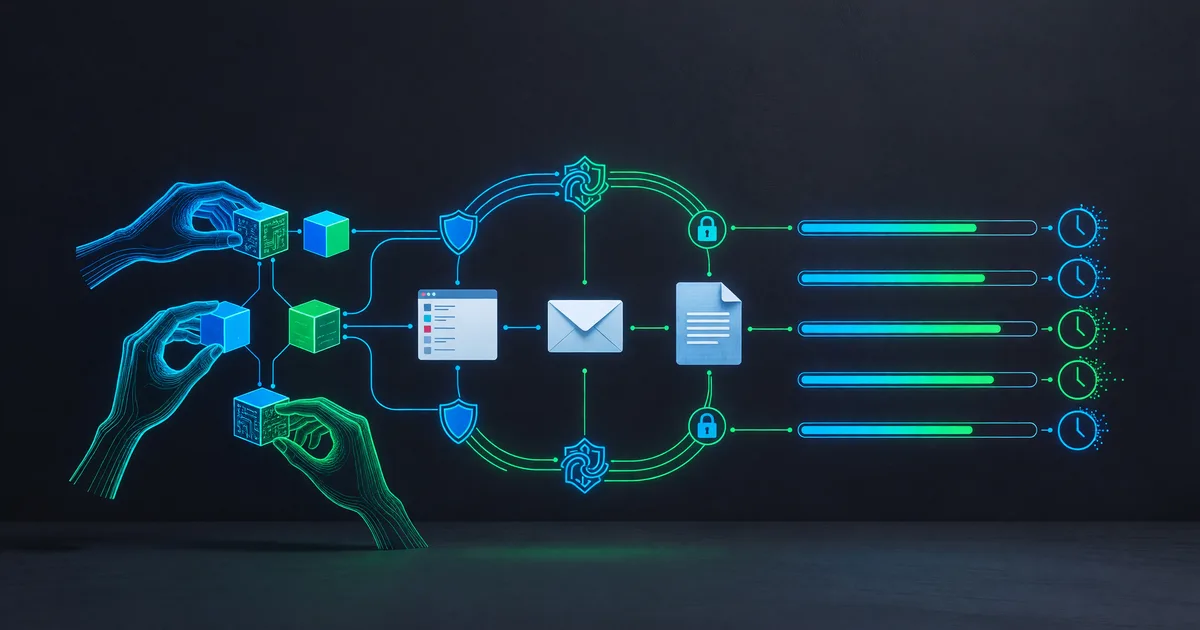
OpenAI launched workspace agents in research preview on April 22, 2026, and they're fundamentally different from anything ChatGPT has offered before. Instead of you prompting a chatbot and waiting for a response, you configure an agent with a goal, connect it to your tools (Slack, Gmail, Google Docs, Calendar), and it runs autonomously — even when you're asleep, in meetings, or on vacation.
The pitch: tell an agent "every morning at 7am, check my inbox for customer escalations, draft responses in my tone, and post a summary to #support-leads in Slack." It does exactly that. No daily prompting required.
The key distinction: Workspace agents aren't chatbots you talk to. They're background processes with access to your tools, triggered by schedules or events, that take actions on your behalf. Think cron jobs with judgment.
What they can connect to right now:
- Slack — read channels, post messages, respond to threads, react to messages
- Gmail — read, draft, send, label, and archive emails
- Google Docs — create, edit, comment on, and share documents
- Google Calendar — read events, create meetings, send invites
- Web browsing — research topics, check pages, pull data
What they can't do (yet): interact with apps outside this set, execute code, access local files, or take actions in tools like Notion, Linear, or your CRM. OpenAI says more integrations are coming, but for now, you're working within Google Workspace + Slack.
Who Gets Access and What It Costs
During the research preview (free through early May 2026), workspace agents are available to ChatGPT Plus, Pro, and Team subscribers. Enterprise and Edu accounts are excluded for now — OpenAI says those arrive in Q3.
After the preview ends, pricing hasn't been confirmed, but OpenAI's documentation references "agent compute credits" as a future billing mechanism. For now, you get roughly 50 agent runs per day on Plus and unlimited on Pro. Each "run" is one trigger-to-completion cycle.
To check access: open ChatGPT, click your profile → Settings → Beta features → Workspace Agents. If the toggle exists, you're in.
Setting Up Your First Agent: Step by Step
Step 1: Connect Your Accounts
Go to Settings → Connected Apps in ChatGPT. You'll see options for Google Workspace and Slack. The OAuth flow is standard — sign in, grant permissions, done. A few things to know:
- Google permissions are granular. You choose which calendars, which Gmail labels, and which Drive folders the agent can access. Don't grant full access unless you need it.
- Slack requires workspace admin approval if your team has app restrictions enabled. Ask your admin to approve "ChatGPT Workspace Agent" in the Slack App Directory.
- You can revoke access anytime from the same settings page.
Step 2: Create an Agent
Navigate to ChatGPT → Agents (in the left sidebar, below GPTs). Click "New Agent." You'll see:
- Name: Something descriptive. "Morning Inbox Triage" beats "Agent 1."
- Instructions: This is the system prompt. Be specific about what it should do, how it should behave, and what it should never do.
- Triggers: Schedule (daily at 7am), event-based (new email matching a filter), or manual (you click "Run").
- Tools: Which connected apps this agent can use.
- Approval mode: Auto-run (fully autonomous) or require approval (it drafts actions and waits for you to confirm).
Step 3: Write Effective Instructions
This is where most people trip up. Vague instructions produce unreliable agents. Here's the difference:
Bad: "Help me manage my email."
Good: "Every weekday at 7:00am ET, scan my Gmail inbox for unread emails received in the last 12 hours. Categorize each as: (1) needs my reply today, (2) FYI only, (3) can be archived. For category 1 emails, draft a reply in my voice — direct, friendly, 2-3 sentences max. Save drafts in Gmail. Post a summary to #daily-briefing in Slack with the format: sender, subject, category, and a one-line summary of what it's about."
Pro tip: Include explicit constraints. "Never send an email without my approval. Never delete anything. If you're unsure about a categorization, default to category 1." Constraints prevent the kind of autonomous disasters that make headlines.
Four Tested Agent Templates That Actually Work
1. Sales Meeting Prep Agent
Trigger: 1 hour before any calendar event containing "call," "demo," or "meeting" with an external attendee.
What it does: Searches Gmail for the last 5 email threads with that contact. Browses their company website and LinkedIn. Creates a Google Doc with: company summary, recent conversation context, 3 suggested talking points, and any open questions from previous emails.
Measured time savings: 12-18 minutes per meeting. For someone with 3 external calls per day, that's nearly an hour back.
Gotcha: LinkedIn browsing sometimes gets blocked by rate limits. Add a fallback instruction: "If LinkedIn is unavailable, note that and proceed with other sources."
2. Support Escalation Triage
Trigger: Every 2 hours during business hours (9am-6pm).
What it does: Checks a designated Gmail label ("support-escalations") for new threads. Reads the full thread, identifies the core issue, checks if a similar issue was resolved in previous threads (searches Gmail), and posts to #escalations in Slack with: customer name, issue summary, suggested resolution, and urgency rating (1-3).
Measured time savings: Cuts initial triage from 8 minutes to under 1 minute per ticket. The agent processed 23 escalations in one test week with 87% accuracy on urgency ratings.
Gotcha: It occasionally misreads sarcasm or frustration level. Add: "When rating urgency, look for explicit deadlines or mentions of contract cancellation — don't rely solely on tone."
3. Weekly Report Generator
Trigger: Every Friday at 4pm.
What it does: Scans all Slack channels the agent has access to for messages from the current week. Identifies key decisions, blockers, shipped features, and open questions. Creates a Google Doc titled "Week of [date] — Team Summary" with organized sections. Shares the doc with a specified list of emails and posts the link to #team-updates.
Measured time savings: Replaces 45-60 minutes of manual compilation. Catches conversations you might have missed because they happened in channels you don't check daily.
Gotcha: Private channels and DMs are excluded unless explicitly granted. The agent will note "I don't have access to #channel-name" if it encounters a reference it can't follow.
4. Email Follow-Up Tracker
Trigger: Daily at 9am.
What it does: Searches Gmail sent folder for emails from 3+ days ago that received no reply. Filters out newsletters, automated notifications, and no-reply addresses. Creates a Google Doc listing each pending thread with: recipient, subject, days waiting, and a suggested follow-up message. Posts the count to Slack: "You have 4 emails awaiting replies — doc linked."
Measured time savings: 10 minutes daily, but the real value is catching dropped threads you'd forgotten about. In testing, it surfaced 3 important conversations that had slipped through the cracks in a single week.
Safety Guardrails You Should Always Set
After the widely-reported incident where an AI agent deleted a company database in 9 seconds, safety isn't optional. Here's what to configure:
- Start in approval mode. Let every agent run in "require approval" mode for at least a week. Review every proposed action. Only switch to auto-run once you're confident in the pattern.
- Set explicit "never" rules. "Never send emails." "Never delete messages." "Never share documents outside the organization." Put these in the instructions even if they seem obvious.
- Limit tool access. An email triage agent doesn't need Calendar access. A meeting prep agent doesn't need write access to Gmail. Principle of least privilege applies.
- Use the activity log. Every agent action is logged under Agents → [Agent Name] → Activity. Review this weekly. Look for unexpected patterns or actions that seem outside scope.
- Set failure behavior. Add to instructions: "If you encounter an error or ambiguous situation, stop and post to #agent-alerts in Slack. Do not retry automatically."
Non-negotiable rule: Never give an agent auto-run permission for actions that are hard to reverse — sending emails, sharing documents externally, or posting in public channels. Keep those in approval mode permanently.
Debugging When Agents Misbehave
Agents will occasionally do weird things. Here's how to diagnose and fix:
| Symptom | Likely Cause | Fix |
|---|---|---|
| Agent does nothing at trigger time | Connected app token expired | Re-authenticate in Settings → Connected Apps |
| Wrong emails categorized | Instructions too vague | Add explicit examples: "Emails from @company.com domains = category 1" |
| Agent creates duplicate docs | No idempotency check | Add: "Before creating a doc, search Drive for existing doc with today's date in the title" |
| Slack posts are too long | No length constraint | Add: "Slack summaries must be under 500 characters. Link to the full doc for details." |
| Agent stops mid-run | Hit rate limit or timeout | Simplify the task or split into two agents with staggered triggers |
The activity log shows the agent's reasoning chain for each run. Click any run to see what it "thought" at each step. This is invaluable for understanding why it made a wrong decision — usually the fix is adding one clarifying sentence to your instructions.
Workspace Agents vs. Zapier/n8n/Make
If you're already using automation tools, you might wonder why you'd switch. The honest answer: you probably won't replace them entirely, but agents handle a category of tasks that traditional automation can't.
- Traditional automation (Zapier, n8n): Best for deterministic workflows. "When X happens, do Y." No judgment, no ambiguity, just reliable if-then logic. Cheaper at scale. Better for high-volume, simple triggers.
- Workspace agents: Best for tasks requiring judgment. "Read this email and decide if it's urgent." "Summarize this thread and identify action items." "Write a contextual reply." The agent applies reasoning, not just rules.
Use both. Let Zapier handle your "new row in spreadsheet → send notification" workflows. Use workspace agents for anything that requires reading comprehension, summarization, or contextual decision-making.
Limitations to Know Before You Build
Honest assessment of where workspace agents fall short right now:
- No real-time triggers. The fastest schedule is every 15 minutes. You can't trigger on "the instant an email arrives." For truly real-time needs, stick with Zapier.
- Limited integrations. Google Workspace + Slack only. No Microsoft 365, no Notion, no Linear, no CRMs. This is the biggest gap for many teams.
- No inter-agent communication. You can't have Agent A trigger Agent B. Each agent is independent. Complex multi-step workflows still need traditional orchestration.
- Occasional hallucination. Agents can misread email content or generate inaccurate summaries. Always keep a human review step for anything client-facing.
- Research preview instability. Expect occasional downtime, missed triggers, and features changing. Don't build mission-critical workflows on this yet.
Your First 30 Minutes: What to Build Right Now
If you have access today, here's exactly what I'd do:
- Connect Gmail and Slack (5 minutes)
- Create the Email Follow-Up Tracker agent from the template above (10 minutes)
- Set it to approval mode with a manual trigger (2 minutes)
- Run it once manually and review the output (5 minutes)
- Adjust instructions based on what it got wrong (5 minutes)
- Set the daily schedule trigger and leave it in approval mode for a week
After one week of reviewing its proposals, you'll have a clear picture of whether this agent is reliable enough to auto-run — and you'll understand the instruction-writing patterns well enough to build your next three agents without much trial and error.
The workspace agents preview closes in early May, but OpenAI has confirmed these will roll into a paid feature afterward. Build your workflows now while it's free, and you'll have battle-tested agents ready when the feature goes GA.
Keep reading

How to Write With AI Without Sounding Like a Robot
Learn how to write with AI without sounding robotic. Master prompt engineering, the write-then-edit approach, voice preservation techniques, and tools like…
Hermes Agent Tutorial: Self-Improving AI Setup
Install and configure Hermes Agent so it remembers your workflows, builds reusable skills, and gets better at your tasks over time.
How to Build Your First AI Chatbot: A Beginner Guide
Build your first AI chatbot from scratch — no PhD required. This practical guide covers no-code tools, API options, and deployment for beginners.